
The field value block allows you to show almost any value from your fields in a page, post or template, without writing code, using WordPress native block bindings.
Field value block is available on both free and pro version of Modern Fields. But the pro version provides a simpler way to select values.
Select a value to bind
First, add the Advanced field value block in a post, page or custom post type where fields groups are assigned.
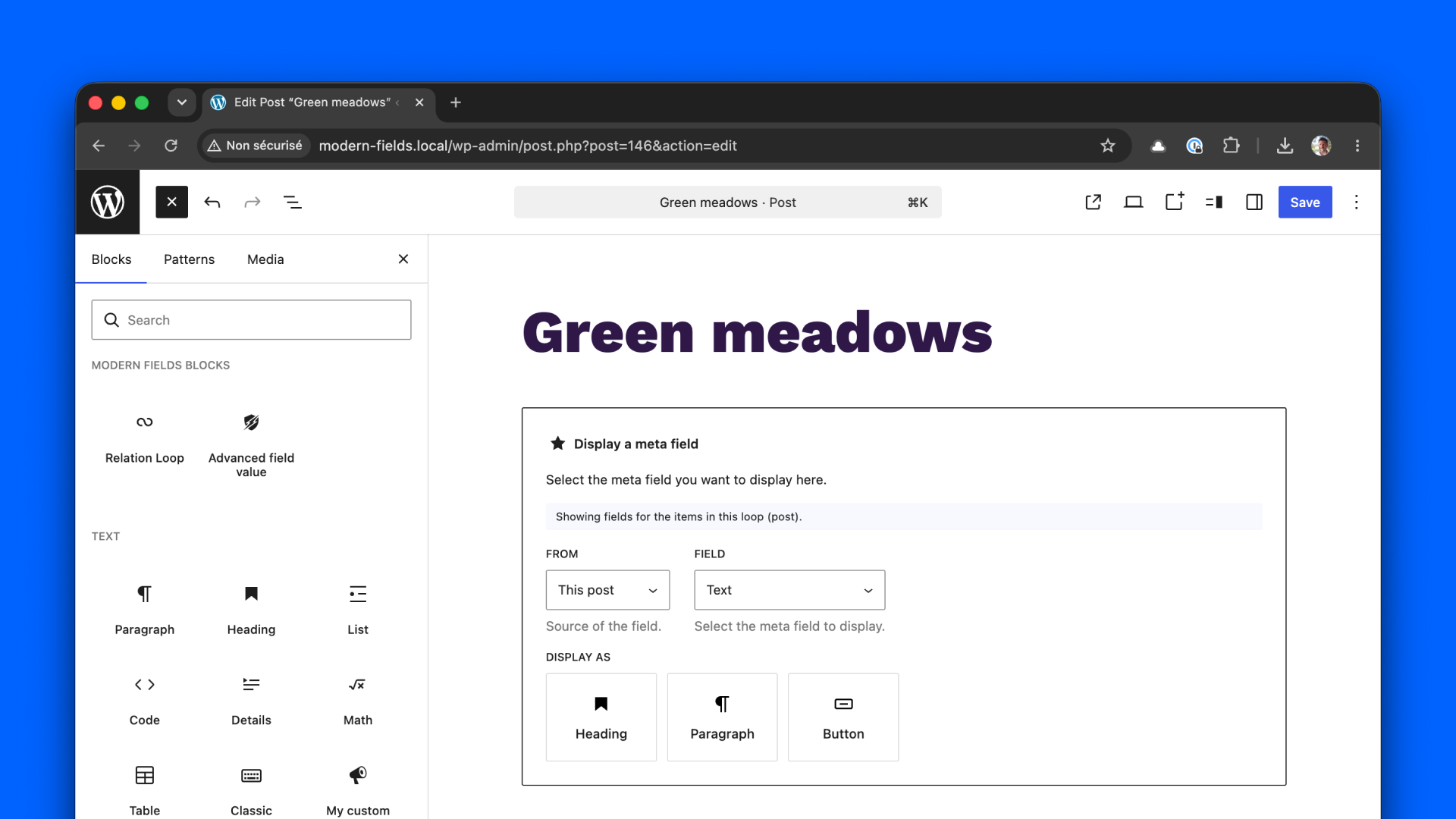
Then, choose the field to display.
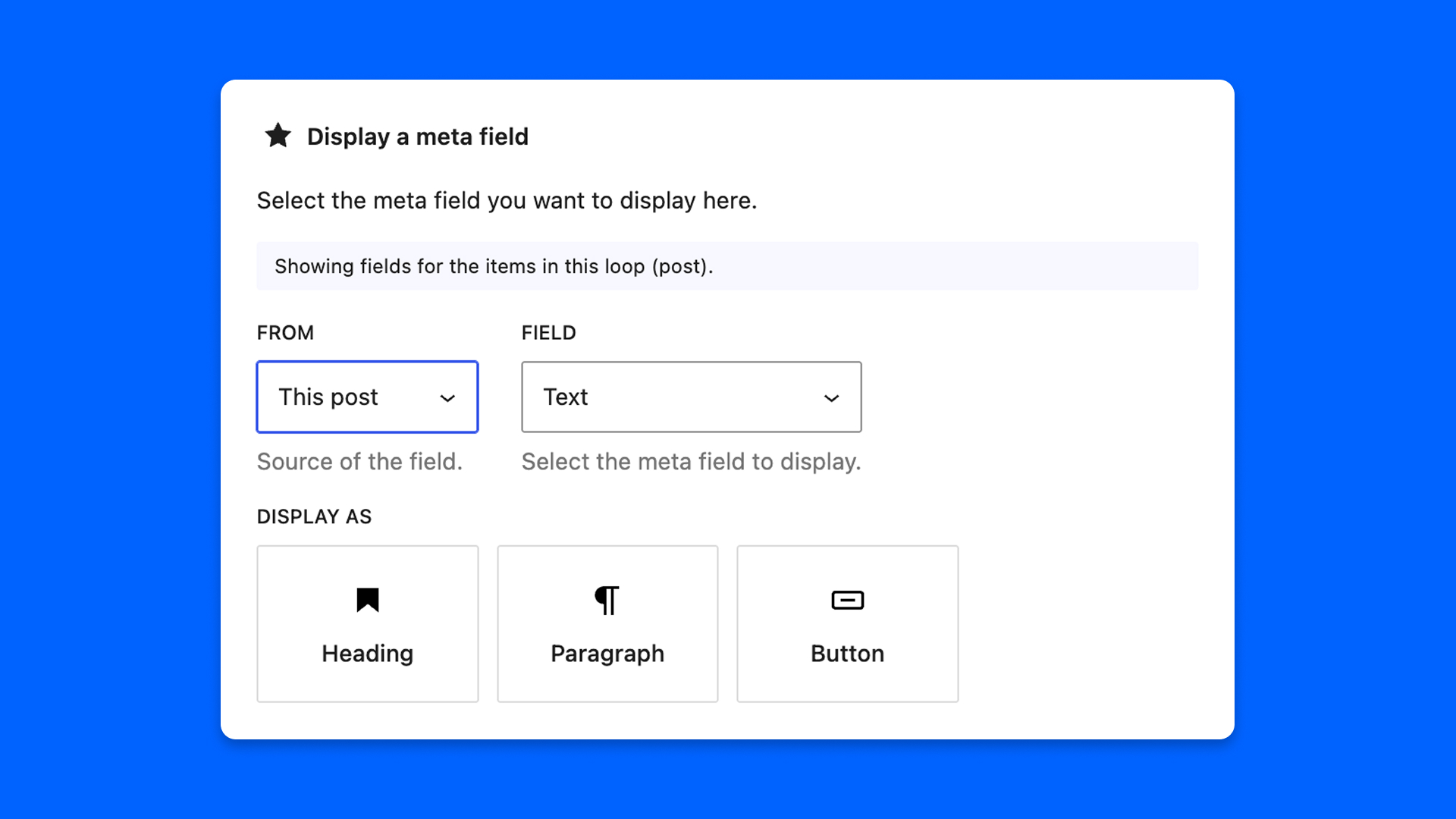
You can choose for several locations:
- This post: the current post where the block has been inserted;
- Post author: fields attached to the author of the current post;
- Options page: a field from any options page or dashboard widget group.
The advanced field value also works in WordPress templates and inside a Query Loop: it then lists the fields of the post type being displayed.
And finally, choose the block to show the value in. For text, you can choose between:
- Heading
- Paragraph
- Button
Other fields turn into the matching WordPress block, which follows the field post by post:
| Field | Becomes |
|---|---|
| Image | Image block |
| Gallery | Gallery block |
| File | File block |
| Embed | Embed block |
| Icon | Icon block |
| Link, Post or Archive Link | Button block, with the destination, the label and the target |
| Date, Time | Date block |
| Relation | Relation loop (a Query Loop showing the selected posts) |
For File, Embed, Icon and Gallery fields, the block’s inspector lets you point it to another field or detach it afterwards. A Gallery block can also bring the images shown in the editor back in step with the field.
In each case, the field value block will transform into the target block, and the value is automatically bound with Block bindings.
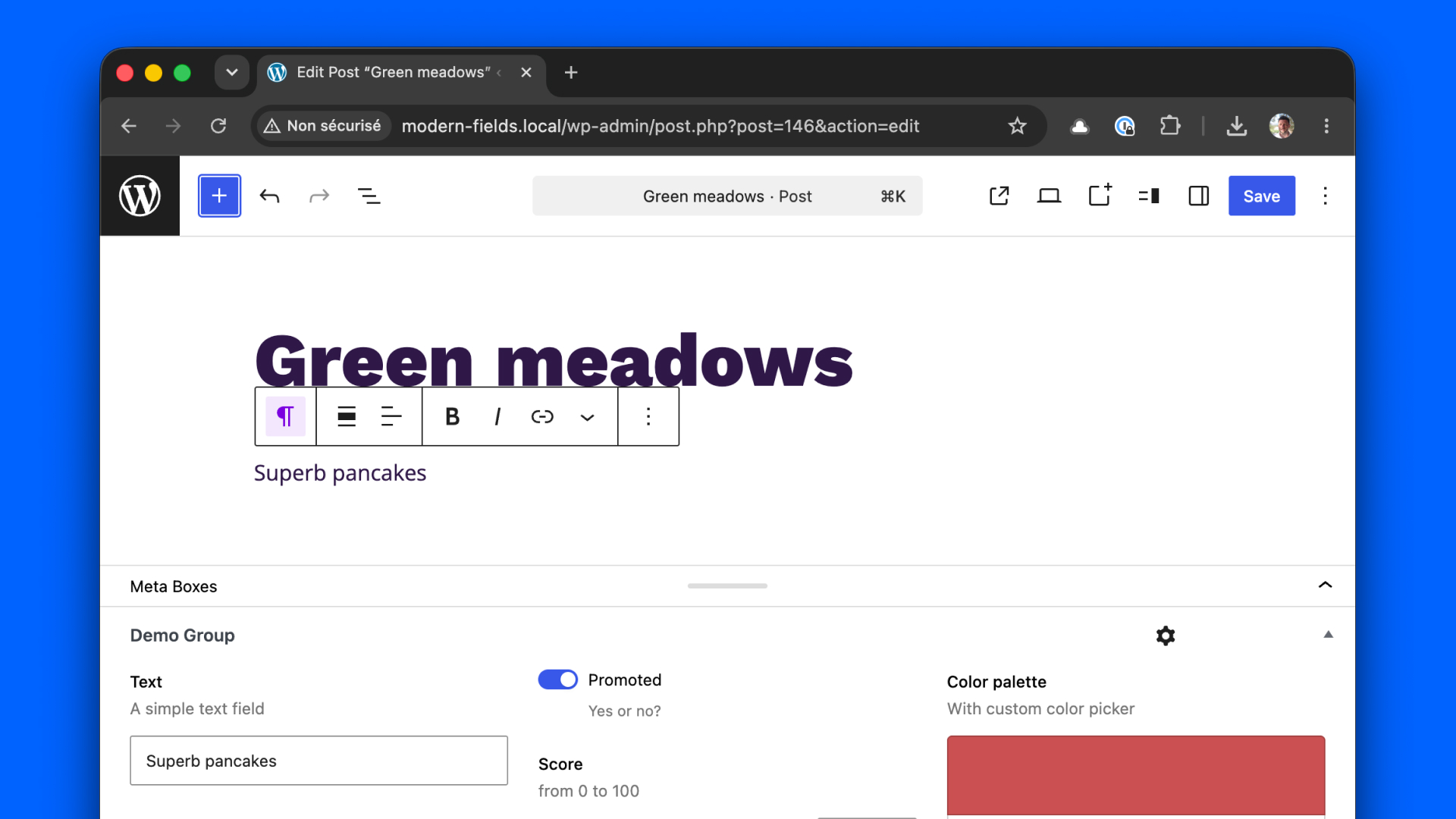
Now, you can edit the value directly from the editor: the meta is synced with the metabox.
Remember: the advanced field value block can bind values form options pages and author page.
In this specific case, you won’t be able to see the value live, due to a WordPress core limitation.
Modify a value before displaying it
If you need to modify the value before displaying it, you can create a custom source and call it in the HTML.
In this example, the custom source will show a numeric value with the currency as a suffix.
Learn more about the get_field() function.
Now, to call the custom source, insert first a paragraph block, activate the code. You should see:
Replace with:
Go back to editor mode, your paragraph should appear in purple : the data is correctly connected to the source.
You can’t see the value live due to a limitation in how WordPress handles custom sources.
You can learn more about block bindings in the WordPress documentation.