
Options pages are fields groups available in a dedicated screen in the WordPress admin instead of being attached to a specific post or page.
Option pages are only available in the pro version of Modern Fields.
Register an options page
To register a new option page, go to Modern Fields > Field groups and set up some fields you want to appear in the options page.
Use the native columns, rows and grid blocks to place multiple fields on the same row.
You can also import a pattern from Modern Fields collection to build a beautiful options pages in a few clics.
In the location metabox, choose “Options Pages” and define where you want the menu link to appear : admin menu root, as a child of settings…
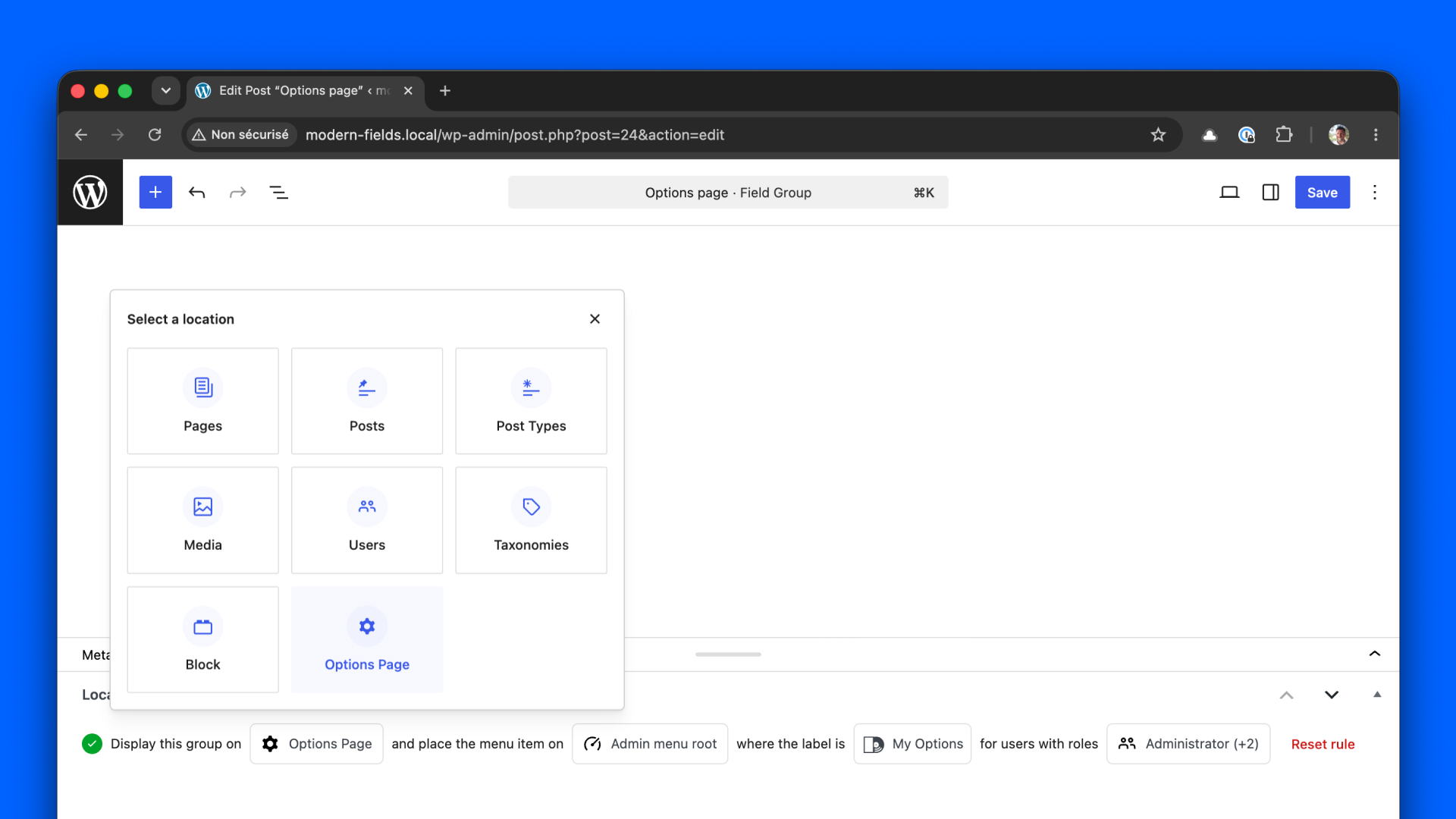
Then, set the name of the menu link and the icon, and your options page is ready.
| Choices | |
|---|---|
| Location | Choose “Options page” |
| Scope | Select the link location (Admin menu root, Settings child, Themes child, Tools child…) |
| Link options | Define the menu label and select an icon |
| Roles | Define who will be able to access this page |
Save the fields group and go back to your WordPress dashboard. You should see your new custom link in the admin menu.
Now, locate and click on the options page link. You should be able to edit the fields.
Options page uses the new JavaScript standards of WordPress. The page will not be reloaded when saving its values.
Get options pages values
Next, you can use the get_field() and the_field() functions to get or display the values, or use the advanced field value block.
You can also get them directly from the Field value block, and display them in any post or template.