
Where WordPress only lets you display posts in chronological or alphabetical order, the relational field lets you select the posts to display, in the order of your choice.
This field is only available in the pro version of Modern Fields.
Configuration
First, go to Modern Fields > Fields groups and add the Relation Field block.
In the inspector, you can select which post types the user will be able to choose from.
| Effect | |
|---|---|
| Post types | Select which post types the user will be able to choose from. |
| Only show published posts | Also shows draft posts if disabled. |
| Show filters | Display a select to filter by post type in the modal, and a select to filter by taxonomy when a post type is selected. |
| Sort order | Select the suggested posts display order in the sidebar left column. |
| Limit selections | If enabled, select the maximum number of posts the user can select. |
| Bidirectional | Record the reverse relation, so a selected post knows which posts point at it (see below). |
Using the relation field
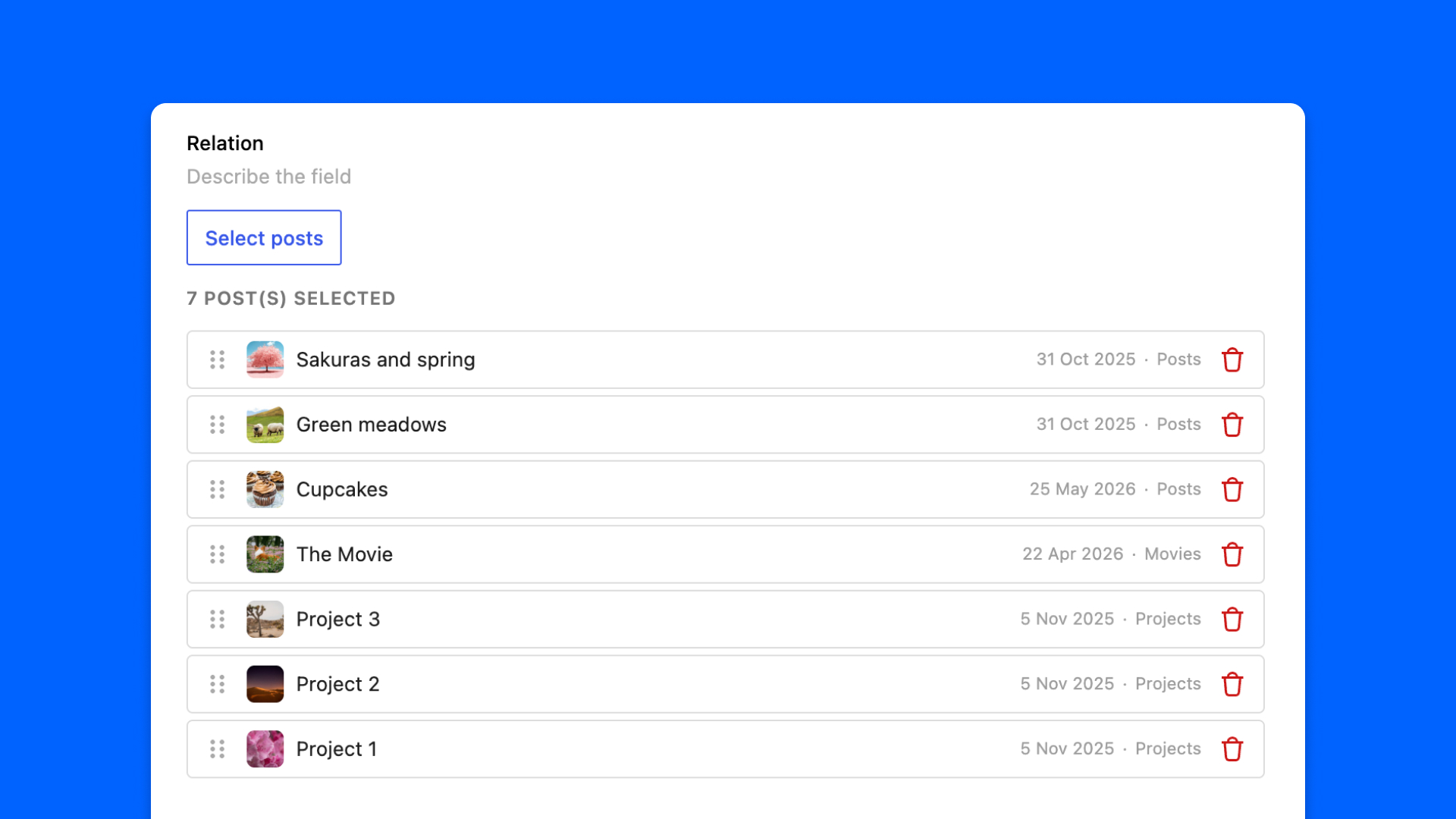
The field shows a preview of the selection made by the user. The “Select posts” button opens a modal for selecting other posts.
In the modal, there are 2 columns: the left column displays the available posts (based on the allowed post types), and the right column displays your selection.
The search bar lets you quickly find your posts.
You can then reorder the items in your selection by dragging and dropping them to set their display order.
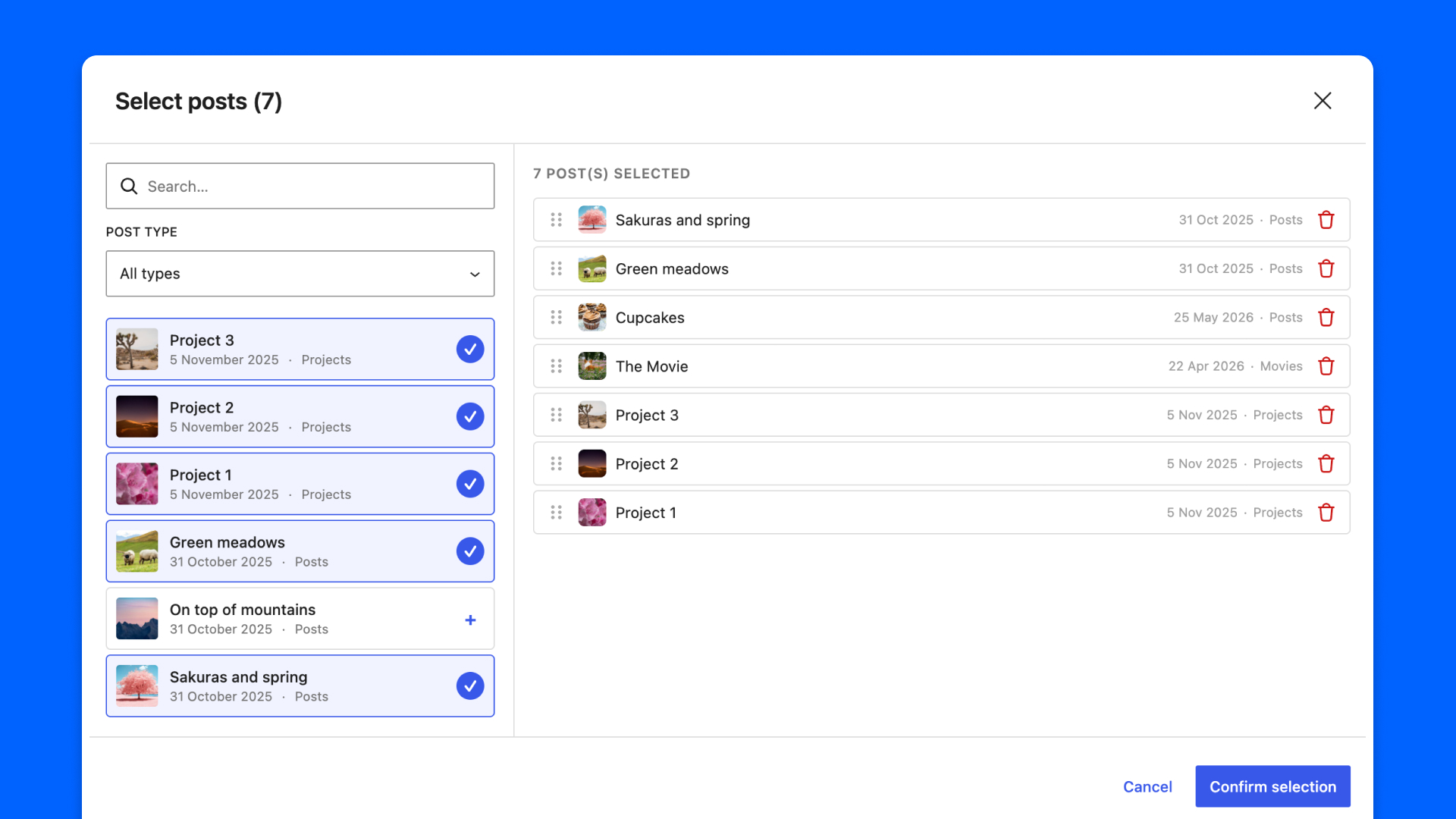
Click on “Confirm selection” to exit the modal and update the selected posts.
Check the relation field in action through this video:
Show posts with relation loop block
In Modern Fields, you don’t need to write code to display the selection. Instead, use the block “Relation loop“. you’ll find it in the inserter.
It’s a variation of the native WordPress query loop block, so it works the same way.
You just need to select the relation field in the block options in the inspector. If only one relation is available, it will be automatically selected.
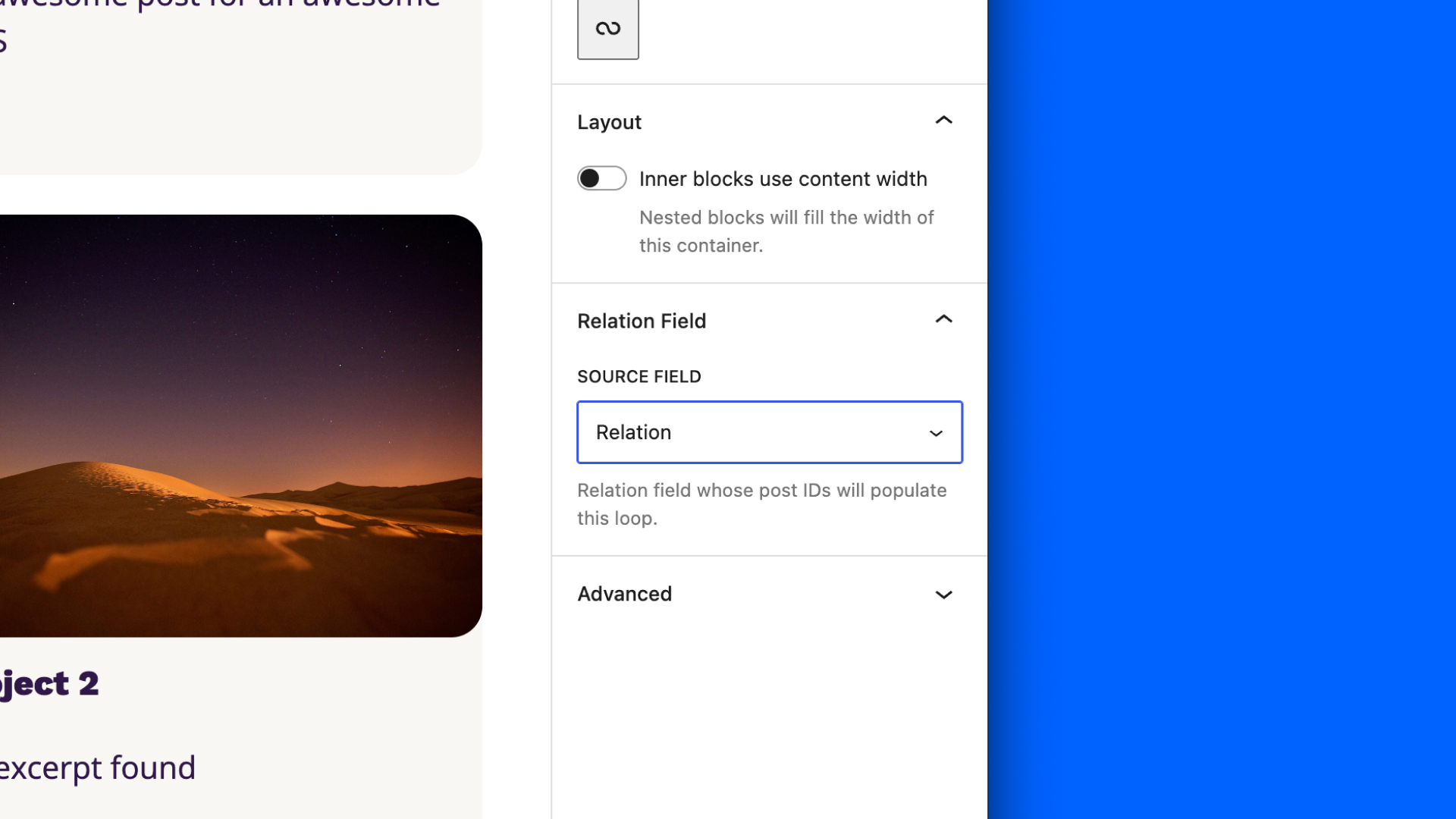
It also works with a relation field in an option page, from a template file…
Now, when you change the selection in the relation field, the relation loop adapts itself live.
Register a pattern for the relation loop block
You can declare a pattern dedicated to the relation loop block. This way, when you insert the block, you will be able to select a complete, ready-to-use layout.
To do so, add the property Block Types in the pattern PHP file. Then, you’ll need to set the reference to the relation loop block variation: core/query/modern-fields/relation-loop
Note: in your pattern, the Query loop should be the first block of the markup.
Learn more about registering WordPress patterns with Full Site Editing.
Show posts with code
You can still write code to display your selection, for example within a custom PHP block.
Outside a custom block:
Inside a Modern Fields custom PHP block:
Learn more about the WP Query here.
Bidirectional relations
A relation points one way: from the post holding the field to the posts it selects. Turn on Record the reverse relation, in the Bidirectional panel of the field settings, and each selected post also records which posts selected it.
For example, agencies select the destinations they sell. With a bidirectional field, a destination can list the agencies selling it. Turning it on also records the relations already saved, in the background, so you can enable it halfway through a project.
Read the reverse relation with modern_fields_get_linked_posts(): pass the name of the relation field, as set on the other posts, and the post being pointed at (the current post by default). It returns post IDs, oldest link first.
A field that is not bidirectional returns an empty array. Turning the option off erases the reverse relations it recorded.