
Theme developers can automatically synchronize field groups, custom post types and taxonomy definitions just by creating a simple folder in their theme. Custom blocks from Modern Fields Pro are synchronized too.
For this, just create a /mf-json/ folder at the root of your theme. With a child theme, create it in the child theme.
Every item will be saved as a separate JSON file under this folder every time you save it in your WordPress dashboard. Sending an item to the trash deletes its file.
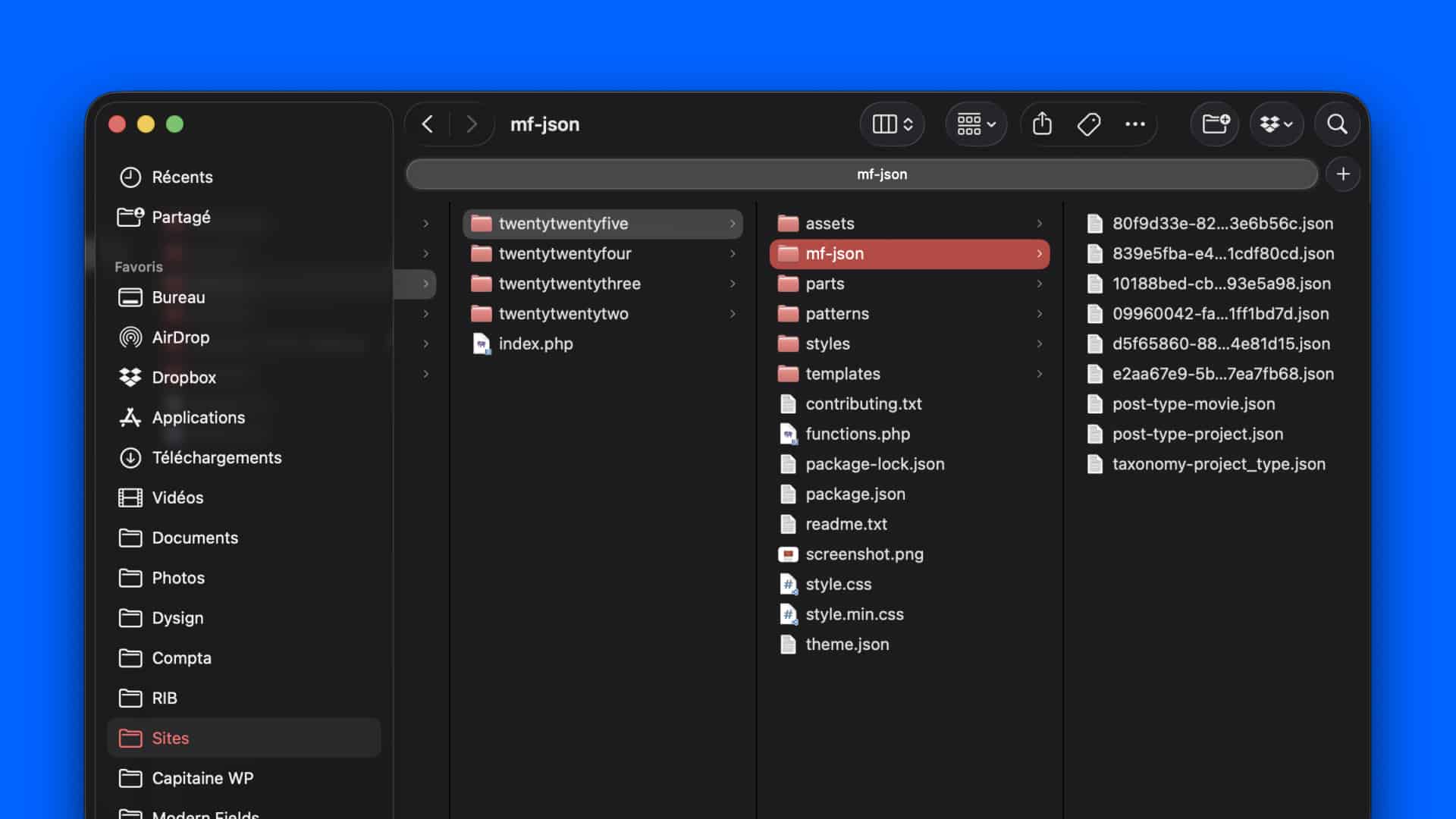
Each file is named after its kind of item: group-{uuid}.json for field groups, post-type-{key}.json, taxonomy-{key}.json, and block-{slug}.json for custom blocks.
It’s useful to version control your Modern Fields data and share it with the other developers of your team.
Get the changes of your team
When a file is newer than the item saved on your site, after a git pull for example, the Sync column of the list shows Sync available. Click it, or use the Sync from theme action of the row, to update the item from its file.
When a file has no matching item on your site yet, because the site is new or a teammate just created the item, the list shows it above its table, under a heading like 2 files to import, with its title and its file name. Click Import on a file, or Import all, to create the items. This panel is in the four lists: field groups, post types, taxonomies and custom blocks.
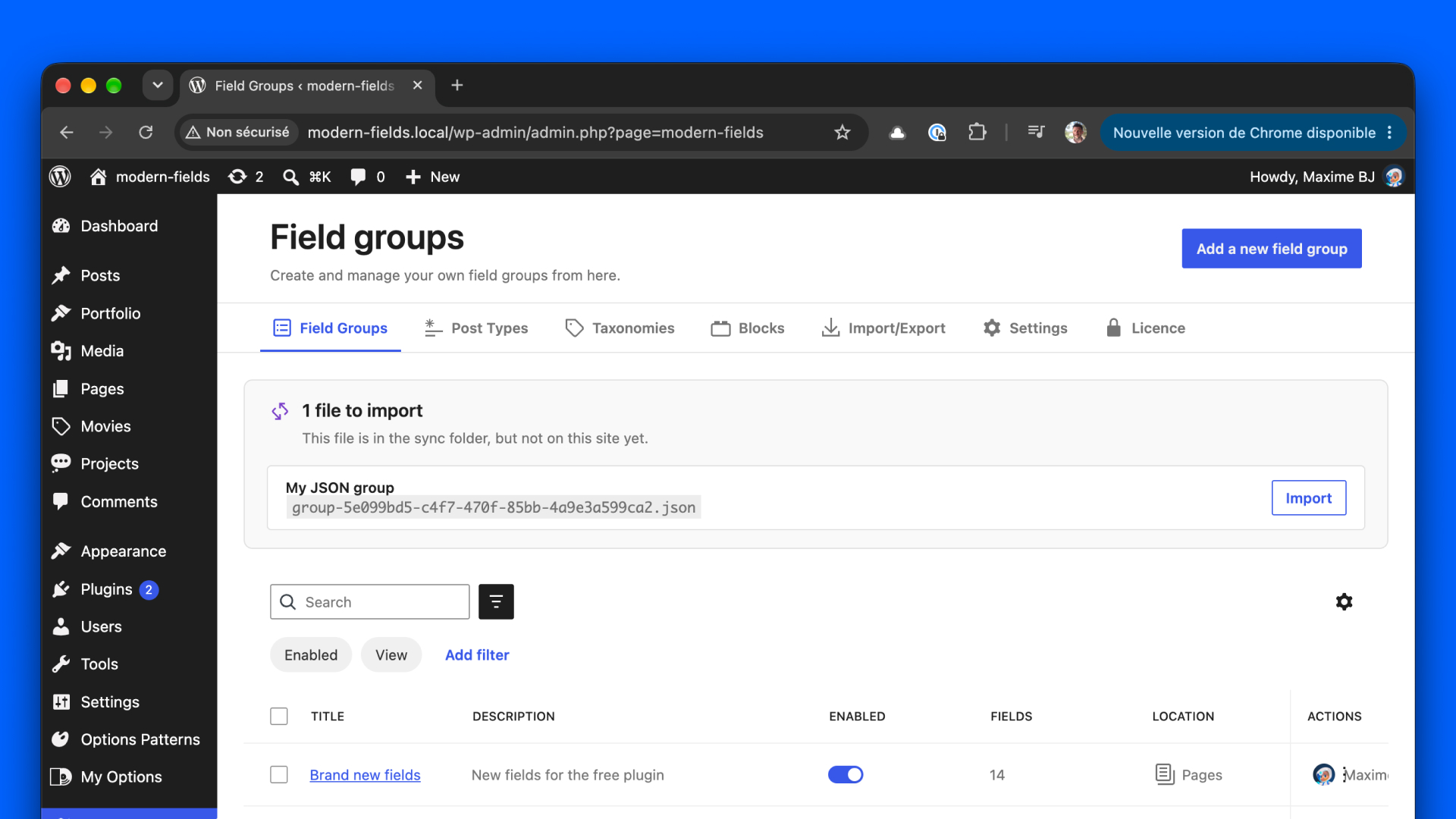
So to set up a new site, install Modern Fields, put your team’s folder in place and import the files from each list. Importing files this way is available since Modern Fields 1.6.0. With an older version, export your items from the Import / Export menu of an existing site, then import that file.
Change the folder
The modern-fields/sync/json_path filter renames or moves the folder. It receives and returns an absolute path. For example, to keep your field groups in a must-use plugin, independently of the theme:
Or to rename it inside the theme:
Modern Fields never creates the folder: create it yourself, and the sync starts as soon as it exists. Modern Fields > Settings shows the folder in use and whether it was found. This filter is available since Modern Fields 1.6.0.